
How to import transactions through csv
Overview
Import Transactions accepts CSV files only. Each row represents one order line item. Sidr Tax imports the data, applies tax calculations, and records transactions in the account.
The upload process is designed for order-level imports. It supports optional ship-from address fields and uses default values when fields are omitted.
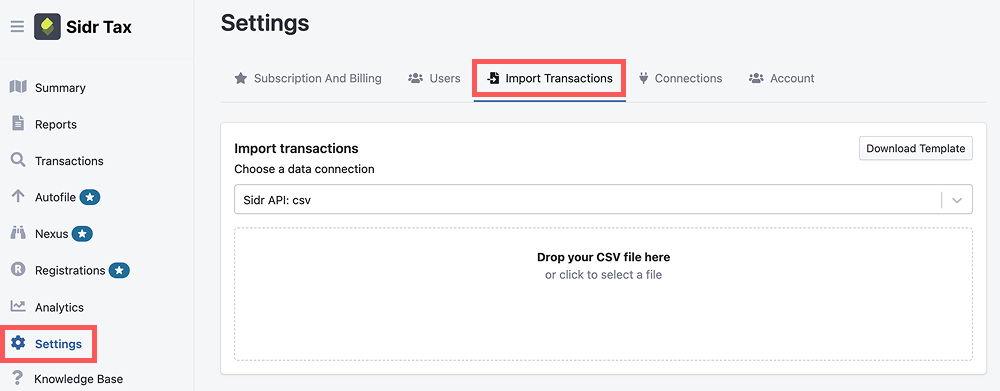
You can access the Import Transactions workflow through the Import Transactions page.
When the page opens, use the Import Transactions section to upload your CSV file.
Supported file formats
- CSV (
.csv)
Before you begin
- File size must be under 10 MB.
- Each upload may contain a maximum of 5000 rows.
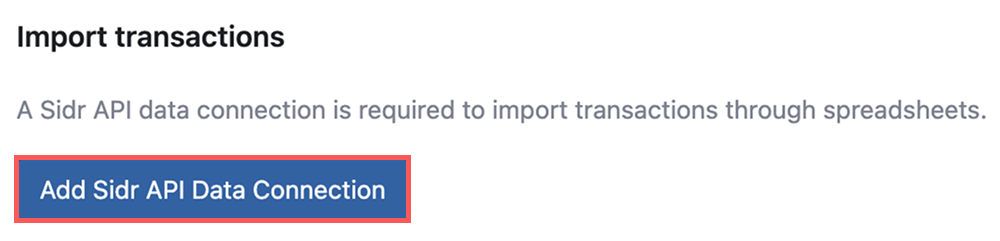
- Your account must have a valid Sidr API data source configured. If you do not have one, click the Add Sidr API Data Connection button on the page to create it.
- If you omit the ship-from address fields, Sidr will use your business default origin address.
- If you omit
Order Ship To Country Code, it defaults toUS.
Step-by-step upload process
- Open the Import Transactions page in Sidr Tax.
- Verify that your account has a Sidr API data connection.
- Download the spreadsheet template from the Import Transactions page. Use the Download Template button on the page.

- Populate the spreadsheet with your order data.
- Save the file as CSV.
- Select the file and upload it.
- Wait for the upload task to complete.
- Review the Import Transactions task status and task details for success or error information.



Required columns
These columns are required for every imported row.
Order ID
- External order ID in your system.
- Maximum length: 64 characters.
- Required for every row.
- If missing, the row cannot be imported.
- Provide a unique order ID for each order to avoid duplicate imports.
Order Created Date
- The date and time the order was created.
- Example:
2/14/2025 2:10:05 PMor02/01/2026 - Required to determine transaction date.
Order Ship To Street 1
- Destination street address line 1.
Order Ship To City
- Destination city.
Order Ship To State
- Destination state code.
- Use the 2-letter state abbreviation.
Order Ship To Postal Code
- Destination postal code.
- Example:
20001
Order Item Unit Price
- Unit price of the item or the total order amount when quantity equals
1. - If you do not have line-item details, place the total order amount here and set
Order Item Quantityto1.
Optional columns and defaults
These columns are optional. If omitted, Sidr will use defaults where applicable.
Order Modified Date
- The date and time the order was modified.
- Example:
2/14/2025 2:10:05 PMor02/01/2026 - Default behavior: if omitted, defaults to
Order Created Date.
Order Ship From Street 1
- Origin street address line 1.
- Default behavior: if omitted, Sidr uses the business default origin address.
Order Ship From Street 2
- Origin street address line 2.
- Default behavior: if omitted, it is treated as empty.
Order Ship From City
- Origin city.
- Default behavior: uses the business default origin address if omitted.
Order Ship From State
- Origin state.
- Default behavior: uses the business default origin address if omitted.
Order Ship From Postal Code
- Origin postal code.
- Example:
20001 - Default behavior: uses the business default origin address if omitted.
Order Ship From Country Code
- Origin 2-letter country code.
- Example:
US - Default behavior: if omitted, uses the business default origin address or defaults to
US.
Order Ship To Country Code
- Destination 2-letter country code.
- Example:
US - Default behavior: defaults to
USif omitted.
Order Item Name
- Line item name.
- Default behavior: if omitted, defaults to an empty value.
Order Item Product Category
- Product category code for the line item.
- Default behavior: if omitted, defaults to
c00000. - Note: this spreadsheet import currently supports only
c00000(general physical goods).
Order Item Quantity
- Number of units sold.
- Default behavior: if omitted, defaults to
1.
Order Item Discount
- Discount amount applied to the line item.
- Default behavior: if omitted, defaults to
0.
Shipping Handling Amount
- Total shipping and handling amount for the order.
- Default behavior: if omitted, defaults to
0.
Exemption
- Optional exemption flag for the line item.
- Possible value:
Wholesale. - Default behavior: if omitted or empty, no exemption is applied.
- When set to
Wholesale, the order is imported with a wholesale exemption type for tax reporting.
Tax Collected
- Total tax collected on the order.
- Optional field that may be included if available.
Column reference table
Column Name | Required? | Description |
|---|---|---|
Order ID | Required | External order ID. Max 64 characters. Unique per order if provided. |
Order Created Date | Required | Date and time when the order was created. Example: |
Order Modified Date | Optional | Date and time when the order was modified. Defaults to |
Order Ship From Street 1 | Optional | Origin street address line 1. Defaults to business default address if missing. |
Order Ship From Street 2 | Optional | Origin street address line 2. Defaults to empty if missing. |
Order Ship From City | Optional | Origin city. Defaults to business default address if missing. |
Order Ship From State | Optional | Origin state. Defaults to business default address if missing. |
Order Ship From Postal Code | Optional | Origin postal code. Defaults to business default address if missing. |
Order Ship From Country Code | Optional | Origin 2-letter country code. Defaults to business default address or |
Order Ship To Street 1 | Required | Destination street address line 1. |
Order Ship To Street 2 | Optional | Destination street address line 2. Defaults to empty if missing. |
Order Ship To City | Required | Destination city. |
Order Ship To State | Required | Destination state code. |
Order Ship To Postal Code | Required | Destination postal code. |
Order Ship To Country Code | Optional | Destination 2-letter country code. Defaults to |
Order Item Name | Optional | Line item name. Defaults to empty if missing. |
Order Item Product Category | Optional | Product category code. Defaults to |
Order Item Unit Price | Required | Unit price or total order amount for the line. |
Order Item Quantity | Optional | Quantity of the item. Defaults to |
Order Item Discount | Optional | Line item discount amount. Defaults to |
Shipping Handling Amount | Optional | Total shipping and handling amount. Defaults to |
Exemption | Optional | Add value |
Tax Collected | Optional | Total tax collected on the order. |
Notes on data quality
- Use valid dates for
Order Created DateandOrder Modified Date. - Use 2-letter state abbreviations for state fields.
Order Ship To Country CodeandOrder Ship From Country Codeshould use ISO 3166-1 alpha-2 codes.- If
Order Item Product Categoryis omitted, Sidr will assumec00000. - If
Order Item Quantityis omitted, Sidr will assume1. - Do not leave required fields blank.
- If the same order appears in multiple uploads without
Order ID, duplicates may occur.
After upload
- Sidr creates an import task for the uploaded file.
- Data processing can take up to 15 minutes.
- You can view the task status on the Import Transactions page.
- If the task fails, review errors in the task details.
- If the task succeeds, transaction counts are displayed by month.
- Uploaded files are stored for reference in import history.
Troubleshooting
Common issues
Missing required fields
Ensure Order ID, Order Created Date, Order Ship To Street 1, Order Ship To City, Order Ship To State, Order Ship To Postal Code, and Order Item Unit Price are populated.
Incorrect date format
Use a valid date or date/time format such as 2/14/2025 2:10:05 PM or 02/01/2026.
Duplicate rows
Provide a unique Order ID when possible.
Missing origin address
Origin address fields are optional, but if omitted, Sidr will use the business default origin address.
If you see validation errors
- Open the import task details.
- Identify the first failed row.
- Correct the row values in the spreadsheet.
- Re-upload the file.
Best practices
- Include
Order IDif available. - Keep
Order Item Product Categoryasc00000for spreadsheet imports. - Provide complete destination address fields for accurate tax calculation.
- Upload one file at a time.
- Keep row counts under 500.
- Use a consistent date/time format for all rows.
Updated on: 10/12/2026
Thank you!